
Selah
Help
For v1.0.0 · Updated May 24, 2026
Highlighting
Word study
The toolbar
Search
- Voice Search is stuck on “Enable Permissions”
- Voice Search isn’t finding my chapter
- I said the wrong chapter number
- I pronounced it right, still nothing
- Keyboard search didn’t work
Notes
Keyboard
More help
Highlighting
↑ TopHow do I highlight a range of verses?
Tap the selection button
 to lock the page. When it turns green
 you are in edit mode. From here you can go two ways:
- Look at where you want to start, pinch your fingers, and drag to where you want to end. Coordinate your eyes and your pinch so you land on the exact spot.
- Look at a word and tap it. You will see this menu:
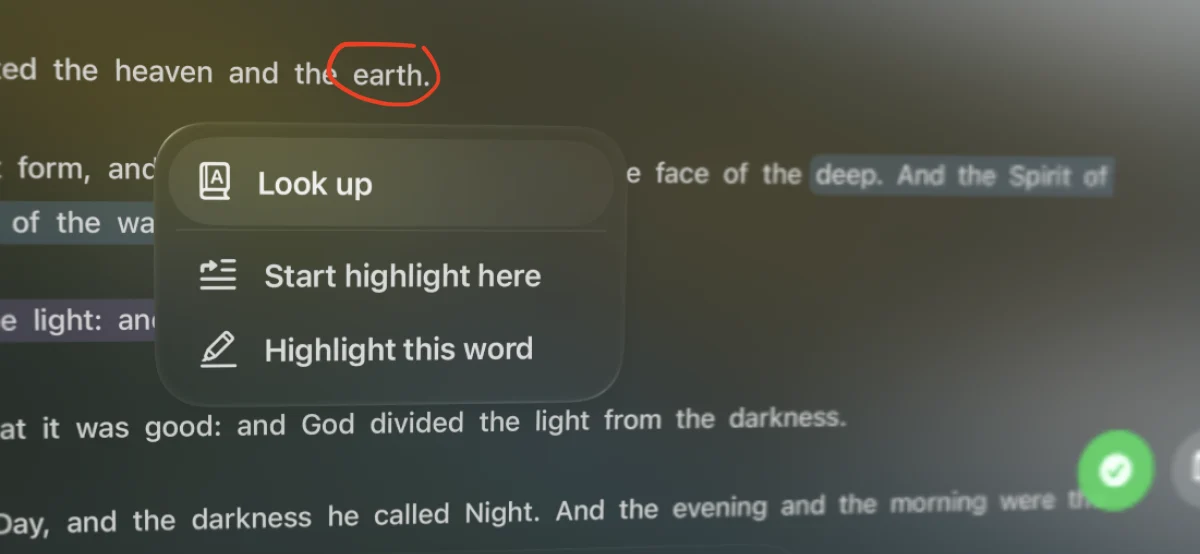 Pick Start highlight here, then tap the verse where you want it to end. You will see this confirmation:
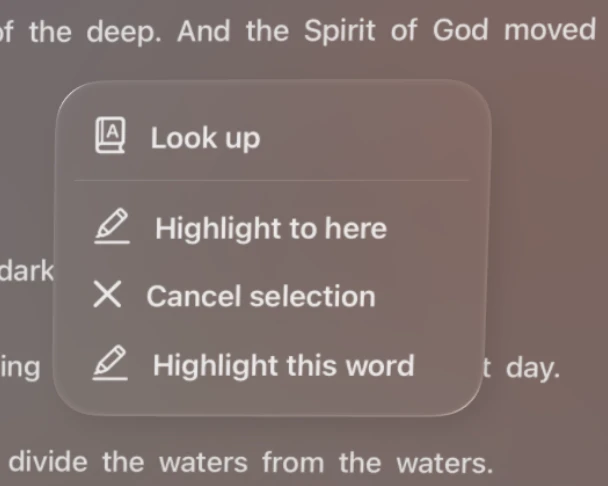 Tap Highlight to here if it is right, or Cancel selection if not.
I just want to highlight one word.
Tap the selection button
to lock the page. Once it is green
look at the word, tap it, and from the menu pick Highlight this word.
I can’t scroll the page. Help!
When the selection button is green
the page is locked for highlighting, so scrolling is turned off. Tap the green selection button again to turn edit mode off, and scrolling comes right back.
Word study
↑ TopHow do I see a word’s Greek, Hebrew, Strong’s, root, or interlinear?
Tap the selection button
to lock the page. Once it is green
tap the word and pick Look up. The lexicon window opens. Scroll all the way down to see the full interlinear.
The toolbar
↑ TopWhat do the buttons at the bottom do?

From left to right:
- Settings: open Selah’s settings (text size, accessibility options, and credits).
- Voice Search: tap to search by speaking. If it is giving you trouble, see Search below.
- Keyboard Search: type a reference. Shorthand works, like “1cor13” or “oba”.1
- ◀: previous chapter.
- ▶: next chapter.
- +: open a duplicate window.
1. An abbreviation didn’t work? Email me at asherchok@outlook.com with the subject Selah - Keyboard Search, so I can make search better.
Search
↑ TopVoice Search is stuck on the “Enable Permissions” page.
Voice Search needs both Microphone and Speech Recognition turned on. On Vision Pro, go to Settings > Apps > Selah and enable both, like this:
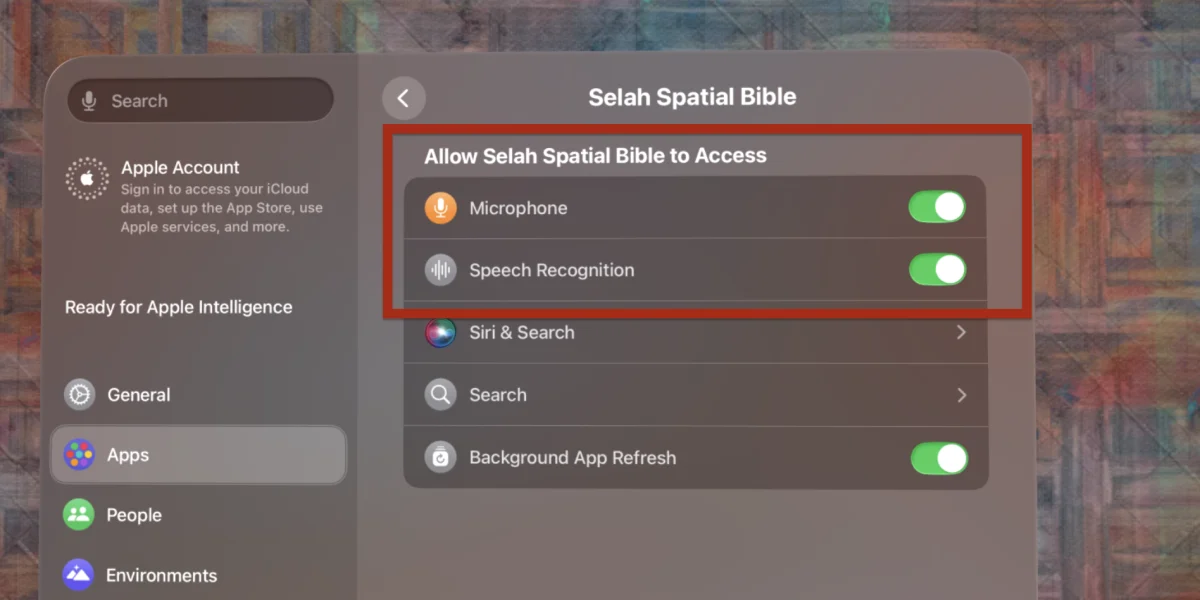
The app restarts on its own once they are enabled.
Voice Search isn’t finding the chapter I want!
Be sure to say chapter, like:
- John chapter three
- Second Corinthians chapter thirteen
- Exodus chapter twenty five
If it still misses, you might be pronouncing a book name a little differently than you expect. No worries, it happens to all of us (I said “Obadiah” wrong for years before I found out).
I said the wrong chapter number.
No need to start over. Just say the chapter again, like chapter twenty four, and Selah jumps to the one you meant. (Said “Exodus chapter twenty five” but you meant Exodus twenty four? Just say “chapter twenty four”.)
I’m sure I pronounced it correctly, but it still doesn’t show!
Here is a quick test: on any Apple device, open speech-to-text (dictation) and say the book name the way you normally would. Did it mishear you? If so, send me the list of mishearings at asherchok@outlook.com with the subject Selah - Mishearing. It really helps me improve the voice search engine. Thank you!
Keyboard (text) search didn’t work.
Sorry about that. Email me what you typed at asherchok@outlook.com with the subject Selah - Keyboard Search, so I can make search better.
Notes
↑ TopWhere are the notes?
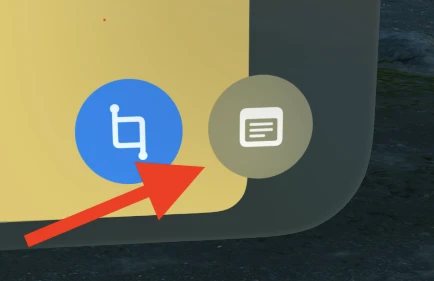
Bottom right, tap the notes button to open the notes panel:
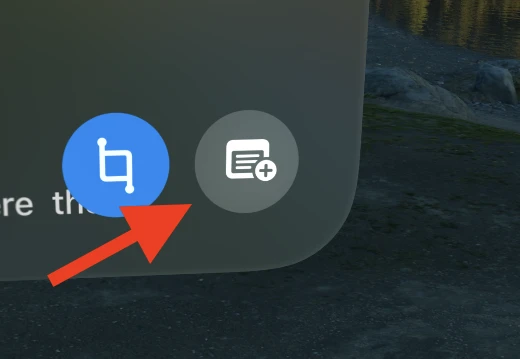
Tap + to add a note; it opens in its own window:
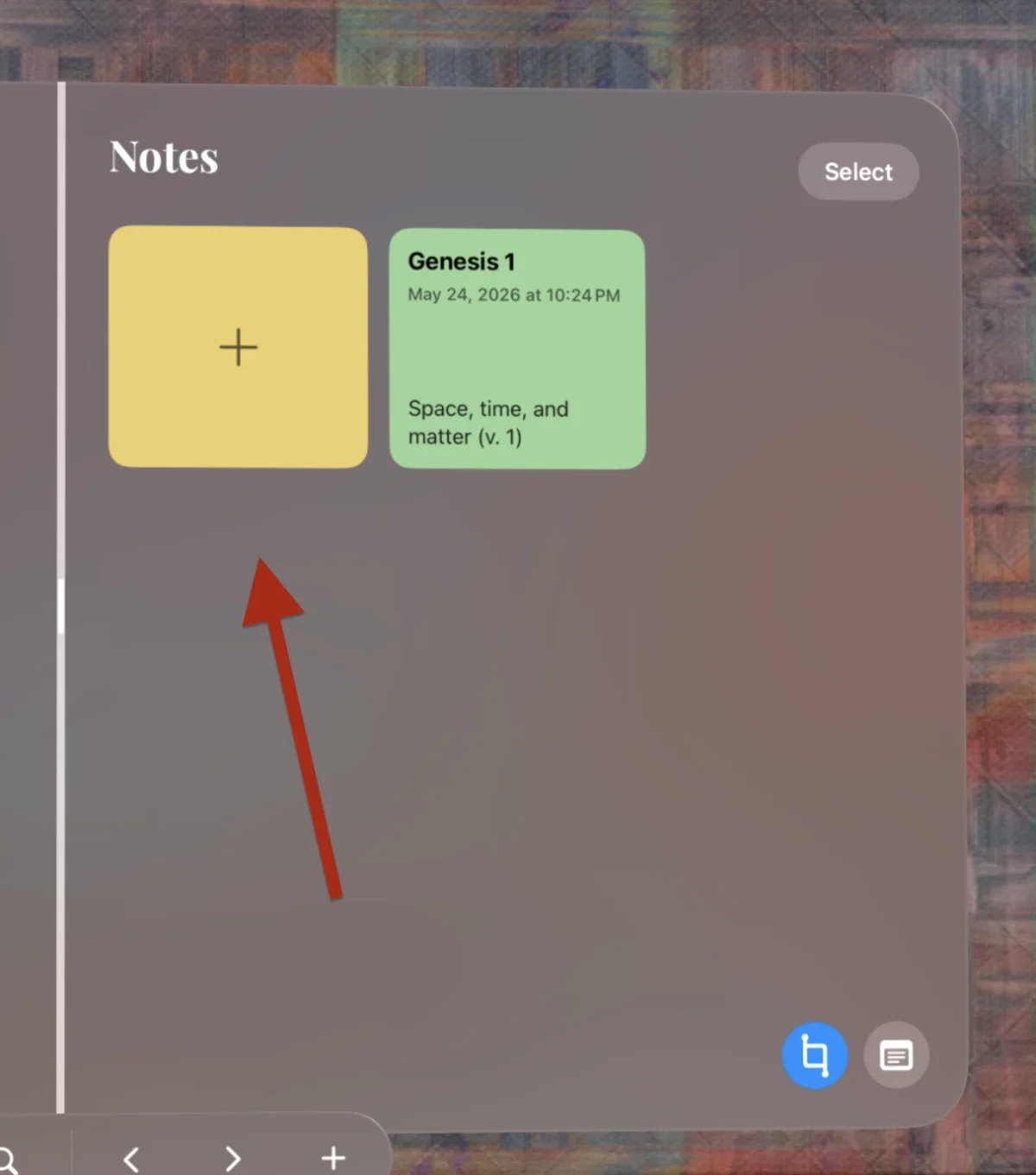
To delete, tap Select at the top right and remove any you want. Heads up: deleting a note is permanent and cannot be undone.
Tap the notes button again to close the panel:
Keyboard
↑ TopI’d like to use Selah with a keyboard.
I officially recommend Apple’s Magic Keyboard:
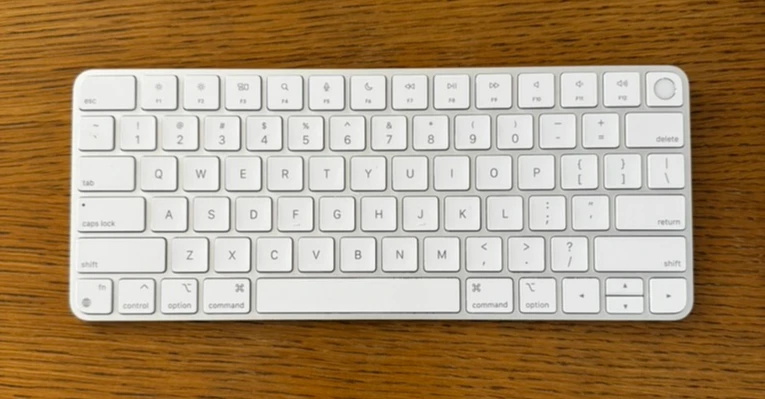
Other Bluetooth keyboards should work too, though the Magic Keyboard is the one I have tested. Here are the shortcuts (⌘ is the Command key; they act on the window you last used):
| Shortcut | Action |
|---|---|
| ⌘ ← / ⌘ → | Previous / next chapter |
| ⌘ ↑ / ⌘ ↓ | Scroll up / down |
| ⌘ F | Open search |
| ⌘ L | Open voice search |
| ⌘ N | New note |
| ⌘ 0 | Show / hide notes panel |
| ⌘ \ | Toggle selection (highlight) mode |
| ⌘ D | Duplicate window |
| ⌘ , | Open Settings |
| ⌘ Esc | Close current window |
| ⌘ Return | Open result (in Search / Voice Search) |
| ⌘ ⇧ Return | Open result in a new tab |
Selah works with Full Keyboard Access. Keyboard trouble? Email me with the subject Selah - Keyboard Problems. Conflicts with Full Keyboard Access? Use the subject Selah - FKA.
More help
↑ TopI have an accessibility issue with Selah.
Please tell me about it, I would love to help. Email me at asherchok@outlook.com with the subject Selah - Accessibility.
I’m having iCloud syncing problems.
Email me about any iCloud sync issues at asherchok@outlook.com with the subject Selah - iCloud.
I have something else...
Something else on your mind? I would love to hear it. Email me anytime at asherchok@outlook.com with the subject Selah - Help (or anything, really).